Installing Indigenous Language Keyboards
Four steps
To install a Translation Commons keyboard is a simple process. First, you will need to install the Keyman application on your device. Once Keyman is installed, you can download and install one or more of the Translation Commons Indigenous language keyboards.
Most of the Translation Commons keyboards rely on the Keyman application. Keyman is a free and open source tool that runs on many desktop and mobile devices. It provides support for creating and deploying virtual keyboards for over 2000 languages.
Installing the Keyman Application
Keyman can be downloaded from the Keyman website, the App Store, or the Google Play for your device operating system.
- Get it on Google Play ↗Keyman for Android ↗Step-by-step guide from Translation Commons →
Android
Mobile - Download on the App Store ↗Keyman for iPhone and iPad ↗
iOS
Mobile - Download Keyman ↗Keyman for Windows ↗Step-by-step guide from Translation Commons →
Windows
Desktop - Download Keyman ↗Keyman for macOS ↗
macOS
Desktop - Download Keyman ↗Keyman for Linux ↗
Linux
Desktop
Downloading Your Indigenous Language Keyboard
The Translation Commons Keyboards can be downloaded from our Translation Commons’ Published Keyboards page. This is where they are made available first. They are then also published on the Keyman site.
The Keyman application uses files with .kmp extensions to contain the instructions and data that defines each keyboard. Some keyboards are distributed with additional documentation and supporting files besides the .kmp file. The complete set of files is distributed in a .zip file. When you open the .zip file, the .kmp file, and any other files can be extracted.
.zip.kmpKeyman
Installing a Keyboard
To install a keyboard, open the .kmp file. This will add it to the Keyman app and it can then be used as needed. When you open the .kmp file Keyman prompts you with a dialog box showing some information about the keyboard and an INSTALL button. If you select the button the keyboard will be installed. You may be prompted by the operating system whether Keyman can make changes to the system. Answer yes to continue. The keyboard will be installed. Refer to the appropriate information page listed above if you need more details.
Using the Keyboard
You can select the keyboard by its language code and name in the Keyman application. See the documentation accompanying each keyboard to learn its capabilities and the keys and keystrokes for each character.
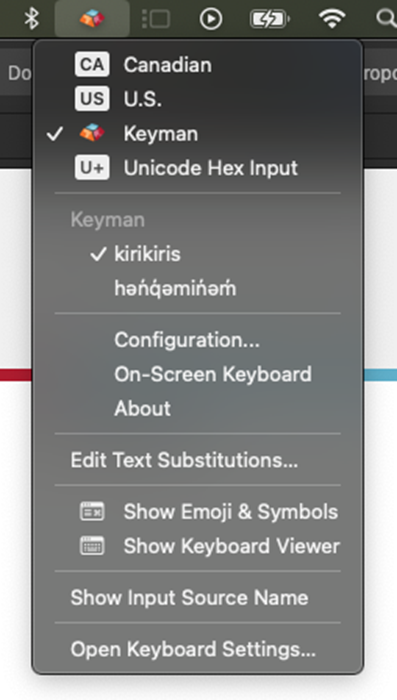
Depending on your operating system there will also be an input method selector on your screen that lets you select or change keyboards easily.
The selector for Windows (found in the task bar)
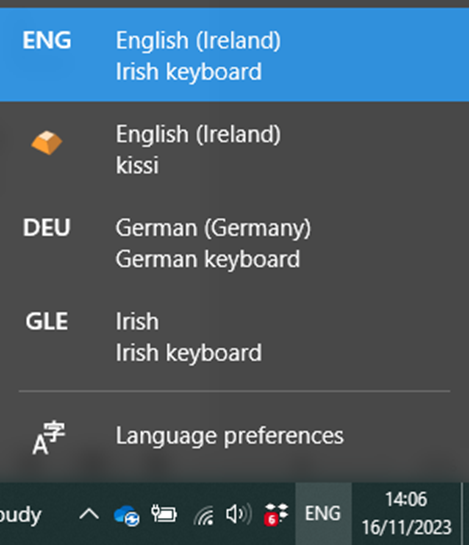
The selector on macOS