for Android
Installation Instructions for Android
How to install a Translation Commons keyboard on Android devices.
Android
Installing a Translation Commons Keyboard on Android Phones
These are the instructions for installing a keyboard produced by Translation Commons on an Android phone. These keyboards are intended to be used by the Keyman application to provide a virtual keyboard for text entry.
Getting the Keyman Keyboard file from Translation Commons
Translation Commons makes the keyboards it produces available in several ways. The early versions of a keyboard may be emailed to you for initial testing. Later versions will be available from the www.translationcommons.org web site. Final versions will also be available from the Keyman web site and the Google Play Store.
The Translation Commons keyboard files will generally be named beginning with “TC_” and ending with “.kmp”. In addition to the keyboard definition, a “.kmp” file will include some documentation that the Keyman app will display. The file you receive or download might be zipped into a package together with documentation or by itself. If this is the case, use a zip file manager such as Winzip to unzip it into a folder.
If you receive the keyboard file in an email, download the attachment, so that it can be installed.
Installing the Keyman app
If you do not have the Keyman app installed on your phone, go to the Google Play Store and install it.
You can learn more about Keyman at www.keyman.com
In the Google Play Store, search for “Keyman”. You will see a screen like the following. The button will say Install instead of Open, if the Keyman app is not already on your phone.

After installation, you will have a button on your screen that looks like the following:
When you open Keyman, you will see the following Getting Started screen:
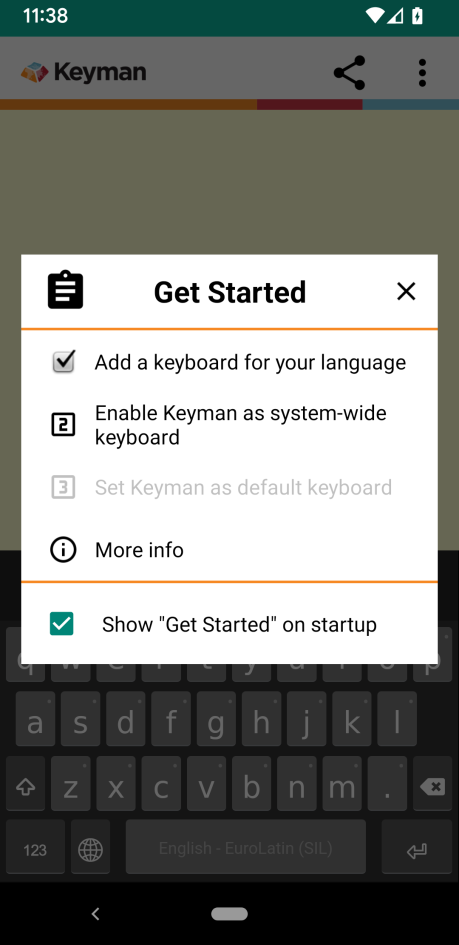
Select “Add a keyboard for your language”. This will bring you to the following screen:

Select “Install from local file”. This will let you choose the keyboard file to be installed. It will have a filename ending in “.kmp”.
Using the keyboard
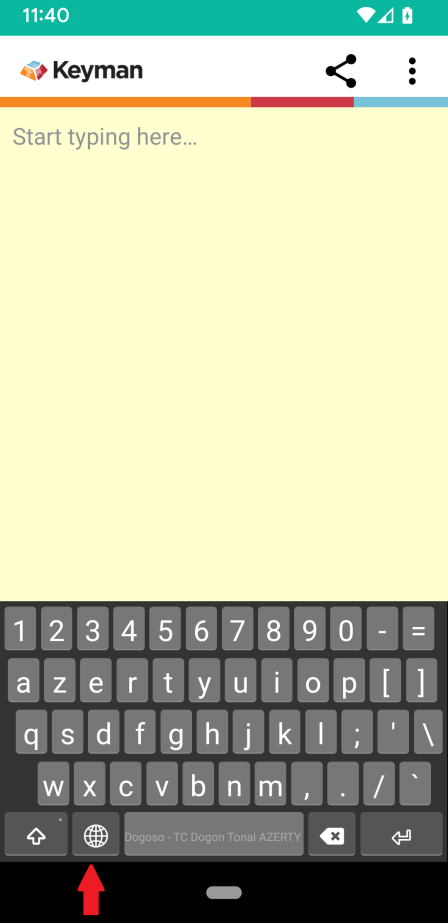
After installation of the keyboard you can use it. When you open the Keyman app, you will see a screen like the following. You may have more than one keyboard available in Keyman. If you press the globe button (see the red arrow) Keyman will let you switch keyboards. Note the space bar has text identifying the current keyboard.
Reporting Problems
Enjoy your new TC keyboard. If you have any problems, please report them to [email protected]. If you are testing a pre-release keyboard, you can report problems to the person or team that sent you the keyboard. For other users, you can report problems using the keyboard feedback form on the TC web site or e-mail
And hey! If you are happy with the keyboard, we would love to hear that as well!